


Check your email every Sunday, and login to the teacher training dashboard for your new weekly lesson. And, throughout the week, you can complete the lessons, watch the videos, listen to the audio, etc., on-demand at a time that’s convenient for you. The same principle applies for exploring and absorbing the gems in your required reading list!
If you have difficulty logging in or seeing the new weekly lesson on your dashboard, it usually means there is a problem with your device or web browser. Here are some steps to take before emailing support:
Please email teachertraining@davidji.com if these steps do not correct the issue, and our team will investigate further.
If you believe you are missing emails from davidji or this course, first monitor your junk/spam folder – this is the first place emails will land if they are from un-approved senders or if your security settings are strong.
To ensure you receive all emails related to this course, please whitelist the following email addresses by adding them to your approved senders list:
Here are detailed instructions for whitelisting >> https://clean.email/blog/email-security/how-to-whitelist-an-email
If these steps do not correct the issue, email us for support.
Each Teacher Training cohort has a dedicated private Facebook group. The link to join this page is in your course welcome letter. If you cannot find the link to join your cohort’s group, email teachertraining@davidji.com.
If you are having trouble accessing the private Facebook group, it’s likely an issue with your computer’s browser. Here are some things to try:
Clear your browser’s cache and cookies. Instructions are attached.
Be sure your browser software is up-to-date – a quick way to do this is to power off your computer completely; wait a few minutes; power it on; and hopefully your computer settings are set to automatic updates.
Try a different browser.
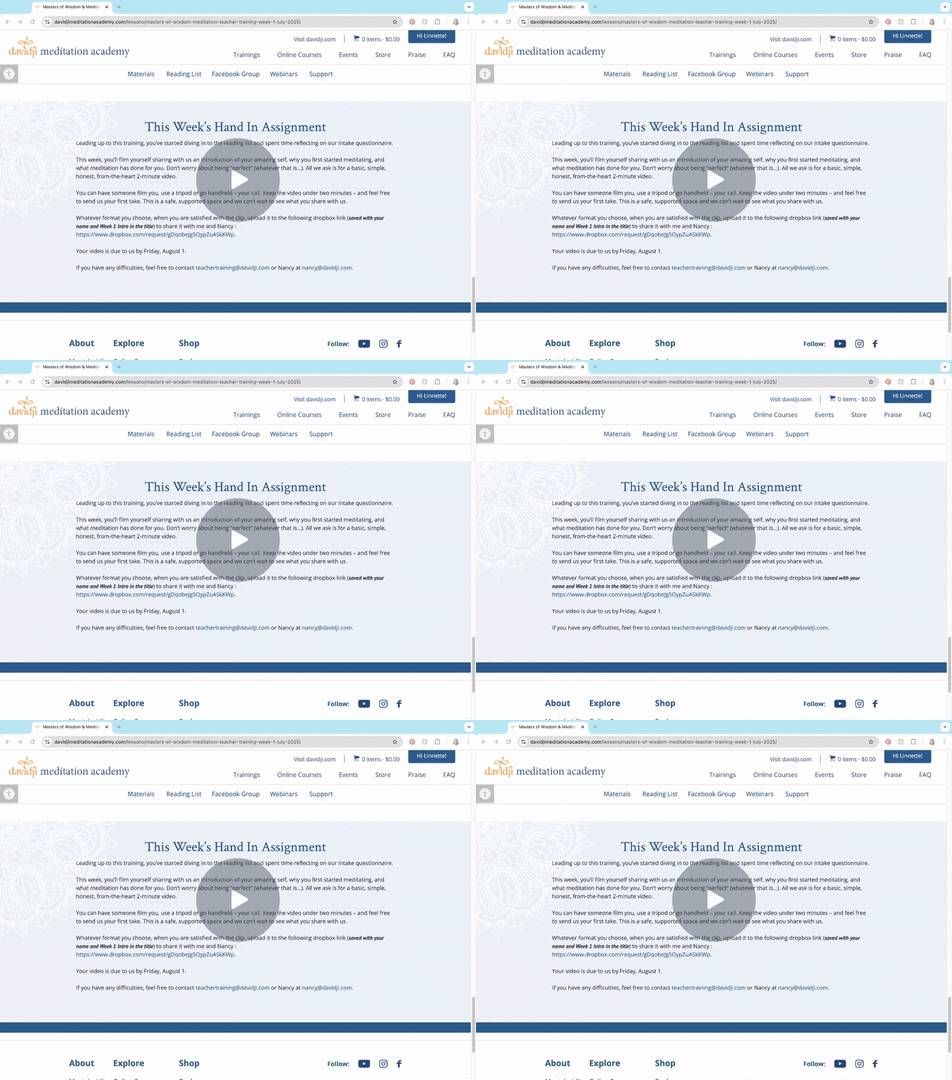
We have created dedicated dropbox links for each assignment to submit. The link will be included in the relevant week’s lesson. Please ensure that your assignments are submitted on time, and that the file name identifies the assignment as yours with your name and assignment title,.
The video link below provides support for uploading your videos to dropbox.
Your completed teacher training questionnaire is required before you can schedule your 1:1. Once received, you will be sent a link to sign up for a 30-minute video call with davidji.
Sessions are available on first come-first-serve basis. Once the first round of sessions fill up we will identify a second round of time slots for those who miss the first round.
Please be sure you make a note of your schedule time, arrive on time, and test zoom in advance of your session so there are no technical glitches. We will set aside this special time for you in davidji’s busy schedule, and we ask that you make every effort to be on time.
If you have trouble accessing the webinars, please refer to the ZOOM Q&As below, or visit the ZOOM help section of their website for information and advice. Getting Started Videos
What are the optimum computer requirements for using Zoom?
Internet Speed
Computer Hardware
Mobile Devices
Full technical details are available at Zoom’s website.
How do I find out my internet connection speed?
Visit www.speedtest.net and click Go.
How do I turn my video on or off?
Click the Video icon (shaped like a camera) in the lower left corner of the Zoom screen. If you turn your video off, you will still be able to hear the audio portion of the event but the other participants won’t be able to see you. To become visible onscreen again, click the icon again to turn on your camera.
How do I change my view of the speaker?
Click on the icon in the upper right hand corner of the Zoom screen to toggle between Speaker View and Gallery View. Speaker view allows you to see the person that is speaking as a larger image and rotates with whoever has the floor. Gallery View allows you to see one large view with up to 25 smaller screens of your fellow participants.
My video or camera isn’t working
Troubleshoot your video issue using Zoom’s video/camera help guide.
My audio isn’t working
Troubleshoot your audio issue using Zoom’s audio help guide. You might also try leaving the event and rejoining it, making sure you click the green button that says Join Audio Conference by Computer. You could also try joining the event on a different device.
If you have any other questions, please email Nancy at nancy@davidji.com, teachertraining@davidji.com or teamdavidji@davidj.com anytime!


