Category Archives: Learndash Course

Teacher Training – Welcome Letter Feb 2026

masters of wisdom and meditation teacher training program banner

Hello Spiritual Warrior!

Welcome to the “official” start of your Masters of Wisdom and Meditation Teacher Training with me! I’m so happy that we are on this journey together.

This is a meditation teacher training like no other. It’s structured to guide you through a well-thought-out process of learning and transformation, while also offering the flexibility of a self-paced and self-directed timeline for readings, lessons, group interaction and assignments each week. The more you engage over the next 16 weeks, the more you will get out of it.

Read on, then log in to your davidji Meditation Academy online dashboard each week using this link. You can sign in using your email address and the password you set when you enrolled. Once you are logged in, click on “My Online Courses” to access the introductory tools you need to GET READY!!!

We start with our first group webinar on Sunday, February 1, 2026 at 9:00 am PT and our first lesson will populate in the dashboard for you that day as well. In the meantime, please spend some time familiarizing yourself with the online dashboard, dive into the required reading, spend some quality time with the intake questionnaire and submit that along with the teacher training agreement forms prior to our training start. By early February we will also send you an invite for a private Facebook group set up exclusively for you and your fellow teachers-in-training.

I’ve laid this training out very carefully to introduce you to the most profound Masters of our time in many different disciplines. Together, we will flow through a process that will: deeply infuse you with these timeless wisdom teachings; help you cultivate a powerful daily practice; and, instill in you the confidence to comfortably share these teachings with others. The key to becoming a Master of these teachings is making an internal shift that transforms your intellectual knowledge into inner wisdom.

We will work together over the next several months to integrate the teachings into your lives so you can infuse the wisdom in a practical way at the level of the soul, and then share it with the world through your personal practice.

This Teacher Training involves immersing deeply in some required core reading, regular lessons we will practice along the way, some assignments, group interaction (with multiple ways to connect, including group video webinars each week, a private Facebook page and study groups), and a final paper due at the end of the training.

I’ll be supporting you every step of the way, as will Nancy Gustavsson, my Director of Training & Development. Together with you, over these next four months our magnificent posse will individually and collectively peel away layers, absorb timeless wisdom and awaken to our best versions.

During the training, reach out to either of us anytime by email at info@davidji.com or nancy@davidji.com or through the Private Group Facebook page. Note: if you hit “reply” to this email, it will go to our Customer Support team at teamdavidji@davidji.com.

The Online Dashboard and Your Weekly Lessons

To get to your weekly lessons, please go here to log in, use your username and password, (write it down in a safe place), and log in anytime you wish to access the lessons. You will receive an email prompting you at the beginning of each week when your new lesson is available. Plan to set aside some time each Sunday to log in and review the week’s lesson.

We have found that sometimes various email accounts seem to be finicky about rejecting emails from people not in your address book. To make sure you receive your weekly email and other emails from us, please make sure you whitelist our email addresses by adding info@davidji.com, nancy@davidji.com, teachertraining@davidji.com, and teamdavidji@davidji.com to your address book as approved senders. If you still do not see your weekly email each Sunday, please check your spam/junk folder and if it is not there either, please be sure to let Nancy know and we will resend it to you.

Webinars

As mentioned above, we will hold our first webinar on Sunday, February 1 starting at 9:00 am PST. Mark your calendar, and check your email or the online dashboard for the webinar information and link for logging in. The webinars are great opportunities to ask questions, go deeper into philosophy, and share your challenges and triumphs.

If you are unable to attend live – don’t worry. We will post the recording for you within 24 hours after the session so you may view it at a more convenient time. But I encourage you to attend the webinars if you can. If you need to arrive late or leave early, it’s okay.

Connecting with Our Teacher Training Tribe

We will create a PRIVATE Facebook group two weeks prior to the training start, specifically for students in your Teacher Training class! Once you receive your invite, request approval to join and start introducing yourself to your fellow teachers-in-training.

I encourage you to share with each other as much as feels comfortable. Again, my direct email is info@davidji.com ; Nancy’s is nancy@davidji.com. Please reach out to us throughout the process with any questions, comments, insights, or revelations.

I can’t wait to get started with you! Log into the davidji Meditation Academy dashboard and your Online Account now and journey with us….

Peace. -davidji
Teacher Training Webinars – Feb 2026

masters of wisdom and meditation teacher training program banner
teacher training live webinar banner

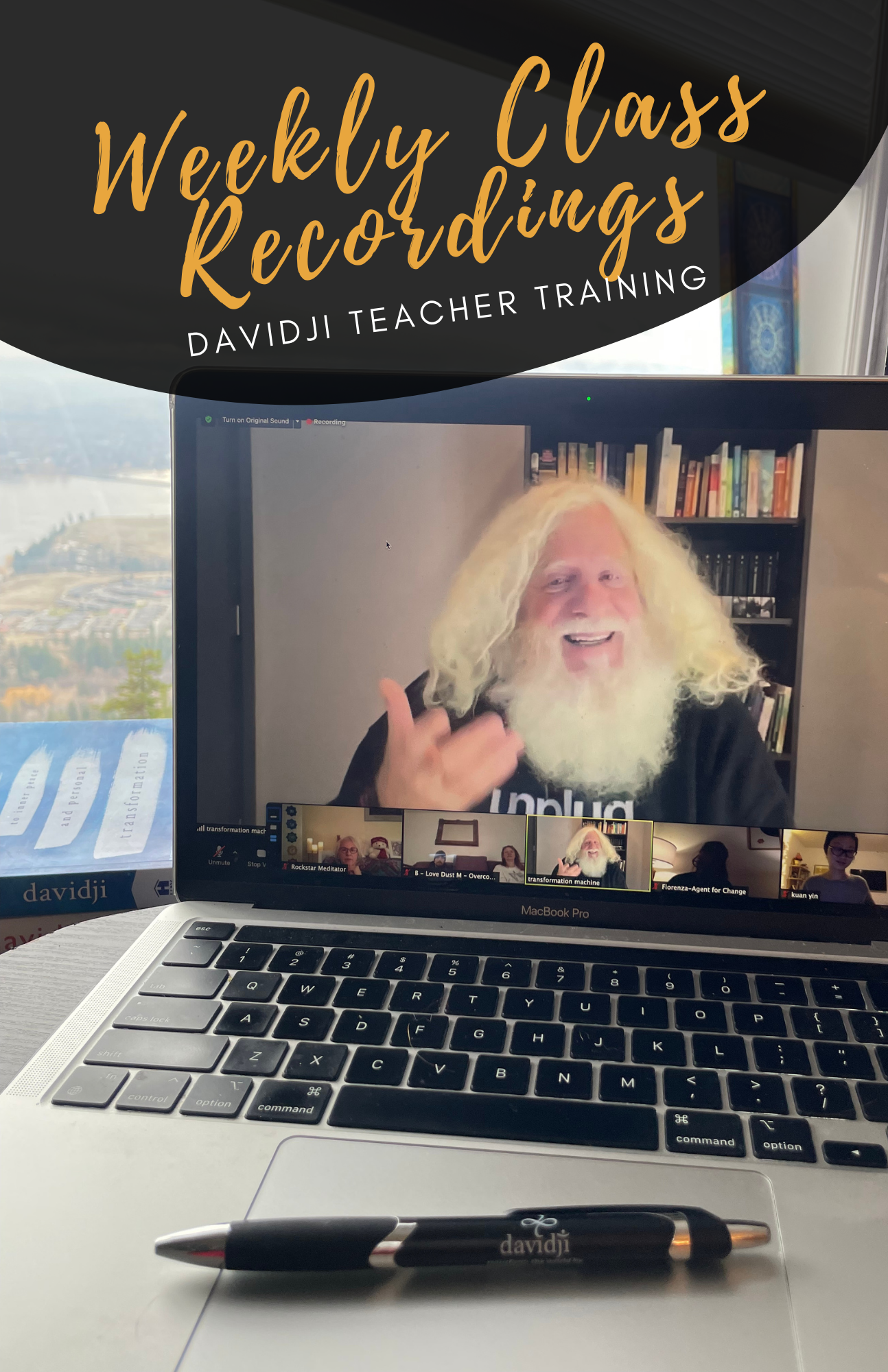
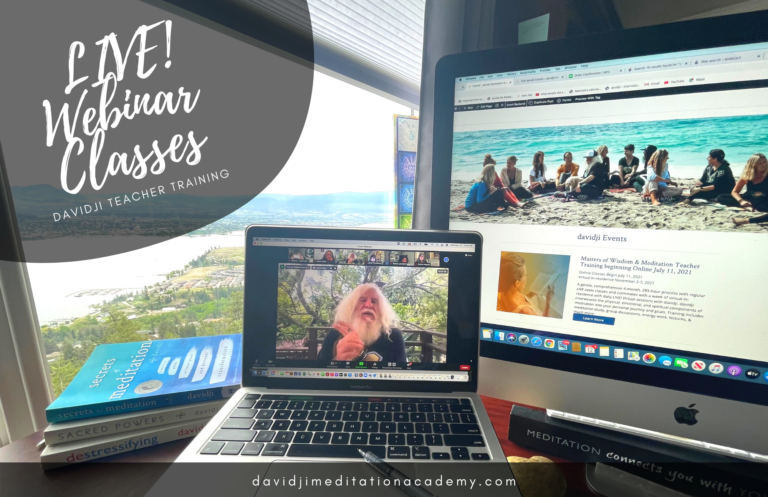
Make note of the login links below and mark your calendar with the dates for each LIVE! Zoom Teacher Training Webinar with davidji. These LIVE Zoom classes are great opportunities to ask questions, go deeper into philosophy, and share your challenges and triumphs.

Each webinar will be recorded so that if you are unable to attend live, don’t worry – you can watch it later or revisit it any time you like during the training. We will send out the recording to everyone after the session and post the link here as well so you may view it at a more convenient time. But we also encourage you to attend the webinars if you can. If you need to arrive late or leave early, it’s okay.

If you experience trouble accessing the webinars, please visit the Zoom help section of their website for troubleshooting advice at https://support.zoom.us/hc/en-us

To connect to the class each week, use the following Zoom link

awakening-your-mind

WEBINAR ONE
Sunday, February 1 2026
Recording: WATCH HERE

WEBINAR TW0
Sunday, February 8, 2026
Recording: WATCH HERE

WATCH WEBINAR THREE
Sunday, February 15, 2026
Recording: WATCH HERE

WATCH WEBINAR FOUR
Sunday, February 22, 2026
Recording: WATCH HERE

WEBINAR FIVE
Sunday, March 1, 2026
Recording: WATCH HERE

WEBINAR SIX
Sunday, March 8, 2026
Recording: WATCH HERE
Resources: Handout from Asila Calhoun, Guest Teacher

WEBINAR SEVEN:
Sunday, March 15 2026
Recording: WATCH HERE

WEBINAR EIGHT
Sunday, March 22, 2026
Recording: WATCH HERE

WEBINAR NINE
Sunday, March 29, 2026
Recording: WATCH HERE

WEBINAR TEN
Sunday, April 5 2026
Guest Speaker: Julia Anastasiou
Recording:  WATCH HERE

WEBINAR ELEVEN
Sunday, April 12, 2026
Recording:   Will be Posted Here

WEBINAR TWELVE
Sunday, April 19, 2026
Recording:   Will be Posted Here

WEBINAR THIRTEEN
Sunday, April 26, 2026
Recording:   Will be Posted Here

WEBINAR FOURTEEN
Sunday, May 3, 2026
Recording:   Will be Posted Here

POST CERTIFICATION WEBINAR
Date : TBA
Recording: Will be Posted Here

Need Help?

If you are having trouble accessing the webinars, please refer to the ZOOM Q&As below, or visit the help section of the ZOOM website for information and advice. Getting Started Videos

What are the optimum computer requirements for using Zoom?

Internet Speed:

  • For best results, an internet connection speed of 10mbps or higher is preferred (test your speed here)
  • A slower connection of 5mbps or higher should work, but video quality may be low
  • If experiencing poor video or audio quality while using wifi, try a wired Ethernet connection — that is, a cable directly from your modem or router to your computer

Computer hardware:

  • A Windows, Mac or Linux computer produced within the last 5 years
  • A working internal microphone, or a dedicated stand-alone microphone separate from the computer
  • A working built-in camera, or a stand-alone camera such as a Logitech webcam
  • Need more help? View Getting Started on Windows and Mac

Mobile Devices:

Full technical details are available at Zoom’s website.

How do I find out my internet connection speed?
Visit www.speedtest.net and click Go.

How do I turn my video on or off?
Click the Video icon (shaped like a camera) in the lower left corner of the Zoom screen. If you turn your video off, you will still be able to hear the audio portion of the event but the other participants won’t be able to see you. To become visible onscreen again, click the icon again to turn on your camera.

How do I change my view of the speaker?
Click on the icon in the upper right hand corner of the Zoom screen to toggle between Speaker View and Gallery View. Speaker view allows you to see the person that is speaking as a larger image and rotates with whoever has the floor. Gallery View allows you to see one large view with up to 25 smaller screens of your fellow participants.

My video or camera isn’t working
Troubleshoot your video issue using Zoom’s video/camera help guide.

My audio isn’t working
Troubleshoot your audio issue using Zoom’s audio help guide. You might also try leaving the event and rejoining it, making sure you click the green button that says Join Audio Conference by Computer. You could also try joining the event on a different device.

Help & How-To

masters of wisdom and meditation teacher training program banner
Logging in to Your Course Dashboard

Check your email every Sunday, and login to the teacher training dashboard for your new weekly lesson. And, throughout the week, you can complete the lessons, watch the videos, listen to the audio, etc., on-demand at a time that’s convenient for you. The same principle applies for exploring and absorbing the gems in your required reading list! 

Navigating Your Course Dashboard – Watch the Video!

Troubleshooting

If you have difficulty logging in or seeing the new weekly lesson on your dashboard, it usually means there is a problem with your device or web browser. Here are some steps to take before emailing support:

  1. Note which web browser you are using and follow these Cache Clearing instructions to clear your cache and history. Then, restart your browser and log in again. 
  2. Ensure that your device (laptop, desktop, mobile device) is properly updated with the latest software. 
  3. Power down your device entirely, wait 30 seconds, then power it on. This often forces your device to automatically update its applications depending on your device settings. 

Please email teachertraining@davidji.com if these steps do not correct the issue, and our team will investigate further.

Missing Emails

If you believe you are missing emails from davidji or this course, first monitor your junk/spam folder – this is the first place emails will land if they are from un-approved senders or if your security settings are strong. 

To ensure you receive all emails related to this course, please whitelist the following email addresses by adding them to your approved senders list: 

  • info@davidji.com
  • nancy@davidji.com
  • teachertraining@davidji.com
  • teamdavidji@davidji.com

Here are detailed instructions for whitelisting >> https://clean.email/blog/email-security/how-to-whitelist-an-email

If these steps do not correct the issue, email us for support. 

Accessing the Private Facebook Group

Each Teacher Training cohort has a dedicated private Facebook group. The link to join this page is in your course welcome letter. If you cannot find the link to join your cohort’s group, email teachertraining@davidji.com

If you are having trouble accessing the private Facebook group, it’s likely an issue with your computer’s browser. Here are some things to try:

  1. Clear your browser’s cache and cookies. Instructions are attached.

  2. Be sure your browser software is up-to-date – a quick way to do this is to power off your computer completely; wait a few minutes; power it on; and hopefully your computer settings are set to automatic updates.

  3. Try a different browser.

Submitting Assignments to Dropbox

We have created dedicated dropbox links for each assignment to submit. The link will be included in the relevant week’s lesson. Please ensure that your assignments are submitted on time, and that the file name identifies the assignment as yours with your name and assignment title,. 

The video link below provides support for uploading your videos to dropbox.

Submitting Your Assignments Step-by-Step – Watch Video

Scheduling a 1:1 with davidji

Your completed teacher training questionnaire is required before you can schedule your 1:1. Once received, you will be sent a link to sign up for a 30-minute video call with davidji.

Sessions are available on first come-first-serve basis. Once the first round of sessions fill up we will identify a second round of time slots for those who miss the first round.

Please be sure you make a note of your schedule time, arrive on time, and test zoom in advance of your session so there are no technical glitches. We will set aside this special time for you in davidji’s busy schedule, and we ask that you make every effort to be on time.

Joining Webinars

If you have trouble accessing the webinars, please refer to the ZOOM Q&As below, or visit the ZOOM help section of their website for information and advice. Getting Started Videos

What are the optimum computer requirements for using Zoom?

Internet Speed

  • For best results, an internet connection speed of 10mbps or higher is preferred (test your speed here)
    • A slower connection of 5mbps or higher should work, but video quality may be low
  • If experiencing poor video or audio quality while using wifi, try a wired Ethernet connection — that is, a cable directly from your modem or router to your computer

Computer Hardware

  • A Windows, Mac or Linux computer produced within the last 5 years
  • A working internal microphone, or a dedicated stand-alone microphone separate from the computer
  • A working built-in camera, or a stand-alone camera such as a Logitech webcam
  • Need more help? View Getting Started on Windows and Mac

Mobile Devices

Full technical details are available at Zoom’s website.

How do I find out my internet connection speed?
Visit www.speedtest.net and click Go.

How do I turn my video on or off?
Click the Video icon (shaped like a camera) in the lower left corner of the Zoom screen. If you turn your video off, you will still be able to hear the audio portion of the event but the other participants won’t be able to see you. To become visible onscreen again, click the icon again to turn on your camera.

How do I change my view of the speaker?
Click on the icon in the upper right hand corner of the Zoom screen to toggle between Speaker View and Gallery View. Speaker view allows you to see the person that is speaking as a larger image and rotates with whoever has the floor. Gallery View allows you to see one large view with up to 25 smaller screens of your fellow participants.

My video or camera isn’t working
Troubleshoot your video issue using Zoom’s video/camera help guide.

My audio isn’t working
Troubleshoot your audio issue using Zoom’s audio help guide. You might also try leaving the event and rejoining it, making sure you click the green button that says Join Audio Conference by Computer. You could also try joining the event on a different device.

If you have any other questions, please email Nancy at nancy@davidji.com, teachertraining@davidji.com or teamdavidji@davidj.com anytime!