
Deeper Still Advanced Teacher Training Webinars
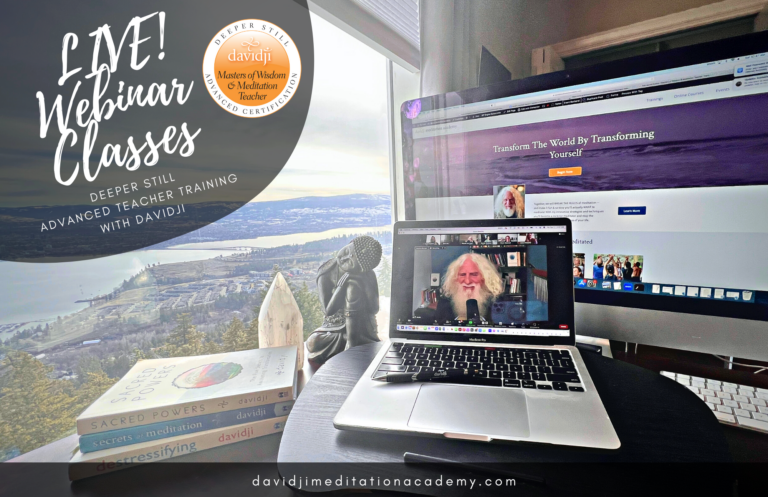
Make note of the login links below and mark your calendar with the dates for each LIVE! Zoom Teacher Training Webinar with davidji. These LIVE Zoom classes are great opportunities to ask questions, go deeper into philosophy, and share your challenges and triumphs.
Each webinar will be recorded so that if you are unable to attend live, don’t worry – you can watch it later or revisit it any time you like during the training. We will send out the recording to everyone after the session and post the link here as well so you may view it at a more convenient time. But we also encourage you to attend the webinars if you can. If you need to arrive late or leave early, it’s okay.
If you experience trouble accessing the webinars, please visit the Zoom help section of their website for troubleshooting advice at https://support.zoom.us/hc/en-us
To connect to the class each week, use the following Zoom link
- Date: Every Sunday until February 2, 2025
- Time: 8:00 am – 9:30 am PST
- Zoom Link: https://us02web.zoom.us/j/85477101456?pwd=TfauGIIoTXhY26kBZ93idYI35PtE1Y.1
- Meeting ID: 854 7710 1456
Passcode: davidji
WEBINAR ONE
Sunday, December 1, 2024
Recording: WATCH NOW
WEBINAR TW0
Sunday, December 8, 2024
Recording: WATCH NOW
WEBINAR THREE
Sunday, December 15, 2024
Recording: WATCH NOW
WEBINAR FOUR
Sunday, December 22, 2024
Recording: WATCH NOW
WEBINAR FIVE
Sunday, December 29, 2024
Recording: WATCH NOW
WEBINAR SIX
Sunday, January 5, 2025
Recording: WATCH NOW
WEBINAR SEVEN
Sunday, January 12, 2025
Recording: WATCH NOW
IMMERSION & CERTIFICATION/GRADUATION SESSIONS
DAY ONE
Thursday, February 13, 2025
Recording: WATCH NOW
DAY TWO
Friday, February 14, 2025
Morning Session Recording: WATCH NOW
Afternoon Session Recording: WATCH NOW
DAY THREE | GRADUATION DAY
Saturday, February 15, 2025
Recording: WATCH NOW
POST CERTIFICATION WEBINAR
Date : March 22, 2025
Recording: WATCH NOW
Need Help?
If you are having trouble accessing the webinars, please refer to the ZOOM Q&As below, or visit the help section of the ZOOM website for information and advice. Getting Started Videos
What are the optimum computer requirements for using Zoom?
Internet Speed:
- For best results, an internet connection speed of 10mbps or higher is preferred (test your speed here)
- A slower connection of 5mbps or higher should work, but video quality may be low
- If experiencing poor video or audio quality while using wifi, try a wired Ethernet connection — that is, a cable directly from your modem or router to your computer
Computer hardware:
- A Windows, Mac or Linux computer produced within the last 5 years
- A working internal microphone, or a dedicated stand-alone microphone separate from the computer
- A working built-in camera, or a stand-alone camera such as a Logitech webcam
- Need more help? View Getting Started on Windows and Mac
Mobile Devices:
- An iPhone, iPad or Android phone or tablet no more than five years old
- Install the Zoom Cloud Meetings app:
– Get Zoom for iOS
– Get Zoom for Android - Need more help? View Getting Started with iOS or Getting Started on Android
Full technical details are available at Zoom’s website.
How do I find out my internet connection speed?
Visit www.speedtest.net and click Go.
How do I turn my video on or off?
Click the Video icon (shaped like a camera) in the lower left corner of the Zoom screen. If you turn your video off, you will still be able to hear the audio portion of the event but the other participants won’t be able to see you. To become visible onscreen again, click the icon again to turn on your camera.
How do I change my view of the speaker?
Click on the icon in the upper right hand corner of the Zoom screen to toggle between Speaker View and Gallery View. Speaker view allows you to see the person that is speaking as a larger image and rotates with whoever has the floor. Gallery View allows you to see one large view with up to 25 smaller screens of your fellow participants.
My video or camera isn’t working
Troubleshoot your video issue using Zoom’s video/camera help guide.
My audio isn’t working
Troubleshoot your audio issue using Zoom’s audio help guide. You might also try leaving the event and rejoining it, making sure you click the green button that says Join Audio Conference by Computer. You could also try joining the event on a different device.


